BGCF Fiscal Sponsorship Portal Instructions
Blue Grass Community Foundation is please to offer an online portal for fund administrators and advisors. Available 24 hours a day, this portal provides a convenient and easy way to manage your fund(s).
Using the portal, advisors and administrators can submit a new voucher request for payment; access monthly fund statements; generate a fund statement for a custom date range; view and download a history of expenses or grants disbursed from the fund; or view and download a history of donations made to the fund they manage.
Accessing the Online Portal
- Navigate to the portal login page: https://bgcf.fcsuite.com/erp/portal
- Enter your username (which is your email address by default) and password, and then click Login.
- Once you have successfully logged in, you may update your username or password by clicking PROFILE, then SECURITY, as shown in the following screenshot:
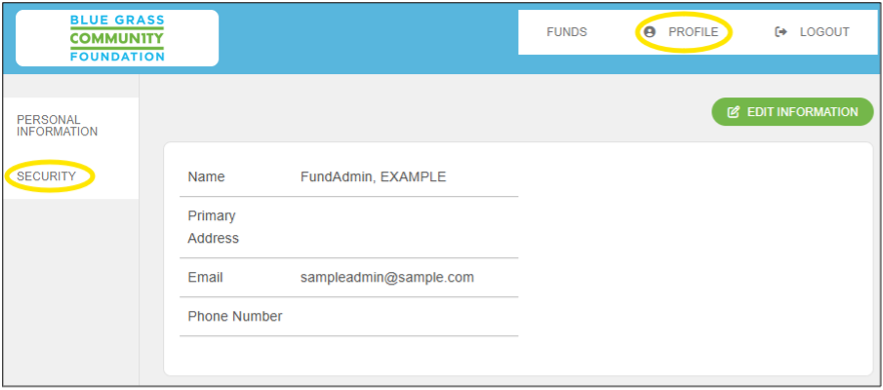
TIP: You may also use the EDIT INFORMATION button to update your contact information. This is the most efficient way to let us know if you’ve moved, or have a new email address or phone number.
Submitting a Request for Payment
To request payment for a fund expense, follow these steps:
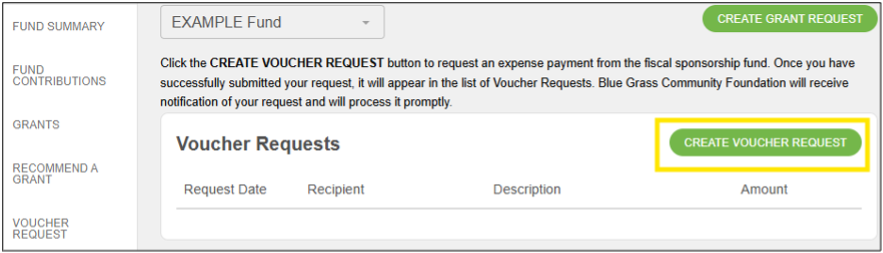
- Click VOUCHER REQUEST in the menu on the left.
- Click the CREATE VOUCHER REQUEST button.
- Select the appropriate option for the vendor who should receive payment.
- Previous Vendors: Use this option if the vendor has previously received a payment from this fiscal sponsorship fund.
- Search Vendors: Use this option if you wish to search the full list of vendors in Blue Grass Community Foundation’s database.
- Manual Vendor: Use this option to provide information for a new vendor.
- Complete the request information, including the amount due. Please note for the following fields:
- Description: Include a description of the expense and any special instructions for BGCF. If you have special mailing instructions or a new address for the vendor, please include that information here.
- Attachment: Upload relevant documents, such as an invoice.
- Click REVIEW.
- Click SUBMIT REQUEST.
Generating a Custom Fund Statement
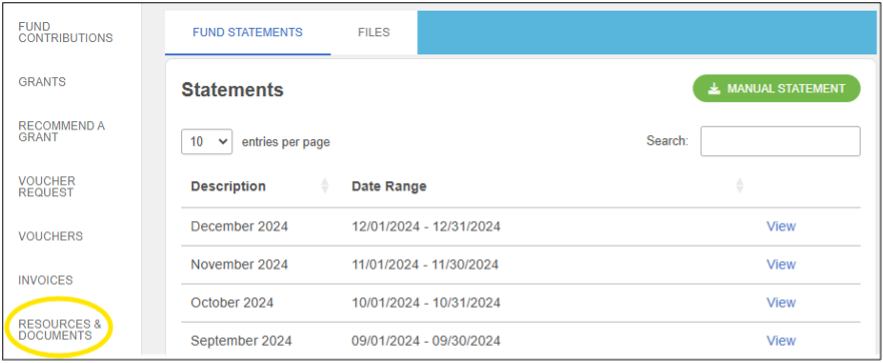
You can find monthly fund statements and other fund documents in the RESOURCES & DOCUMENTS section of the menu on the left.
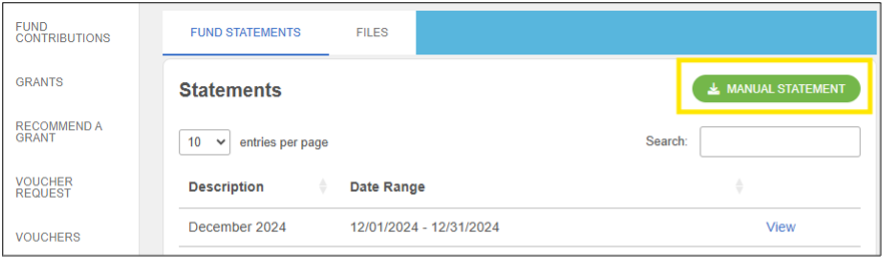
If you wish to generate a fund statement for a custom date range, click the MANUAL STATEMENT button. Please note that the date range you select may be an open period. The generated information will be complete only through the most recently posted fund statement date.
Need Help Logging In?
If you do not have your username and/or password for the Fundholder Portal, click “Forgot your password?” under the LOGIN button. Enter your username (which will be your email address by default), click SEND EMAIL, and you will receive an email with instructions to reset your password. If you do not receive an email, please call us at 859.225.3343.
Questions? Please contact:
Maddie Patrick
Director of Accounting
859.225.3343 ext. 229
maddie@bgcf.org